

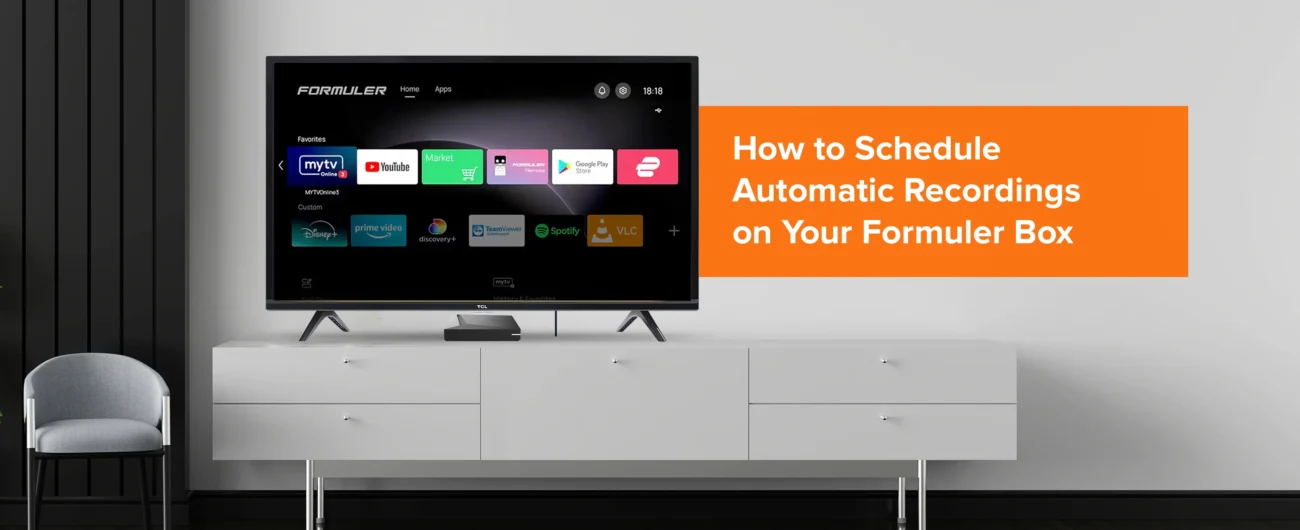
Are you tired of missing your favorite shows, movies, or live events on your Formuler Android streaming device? Imagine being able to automatically record them and watch at your convenience. With Formuler’s powerful MyTVOnline 2 and MyTVOnline 3 applications, scheduling recordings is not only possible but incredibly easy!
This comprehensive guide will walk you through the simple steps to set up automatic recordings on your Formuler box, ensuring you never miss a moment of your preferred IPTV content. Whether you have a Formuler Z11 Pro Max, a Formuler GTV, or a Formuler CC, these instructions will help you master the art of auto-recording.
Why Schedule Recordings on Your Formuler Device?
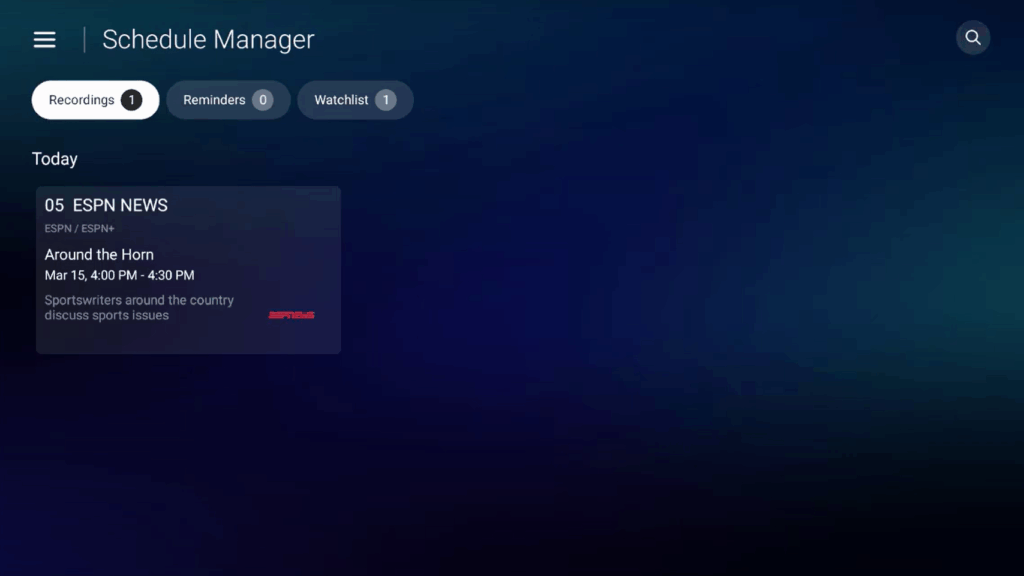
Life gets busy, and it’s not always possible to be in front of your TV when your favorite program airs. Scheduling recordings on your Formuler box transforms your streaming experience, offering:
- Flexibility: Watch what you want, when you want.
- Convenience: No more scrambling to catch live broadcasts.
- Never Miss Out: Ensure you capture every episode of a series or a crucial live event.
- Time-Shifting: Pause, rewind, and fast-forward recorded content, just like a traditional DVR.
Before you begin, make sure you have an external USB storage device (like a USB flash drive or an external hard drive) connected to your Formuler box. This is essential for storing your recordings.
Step-by-Step Guide: Scheduling Recordings with MyTVOnline 2 & 3
The process is largely similar across both MyTVOnline 2 and MyTVOnline 3, with minor interface differences. We’ll highlight them as we go.
1. Prepare Your Storage Device
First, ensure your USB drive is properly connected and recognized by your Formuler device. For optimal performance, a USB 3.0 drive is recommended.
2. Access the EPG (Electronic Program Guide)
This is where the magic of scheduling begins.
- On your Formuler remote, press the “EPG” or “Guide” button. This will open the Electronic Program Guide, displaying a list of channels and their upcoming programs.
3. Navigate to the Desired Program
Use the navigational arrows on your remote to browse through the channels and time slots.
- Find the program you wish to record. Scroll horizontally to move through time and vertically to change channels.
4. Initiate the Recording Schedule
Once you’ve highlighted the program, you have a couple of ways to set up the recording:
- Method 1: Using the “Record” Button
- With the desired program highlighted in the EPG, press the red “Record” (●) button on your Formuler remote.
- A recording options window will typically appear.
- Method 2: Using the “OK” Button (MyTVOnline 2 & 3)
- Highlight the program in the EPG and press the “OK” button on your remote.
- This will usually bring up a program details window. Look for a “Record” or “Schedule Recording” option within this window and select it.
5. Configure Recording Options
The recording options window allows you to customize your scheduled recording. Here’s what you’ll typically see:
| Option | Description |
|---|---|
| Start Time / End Time | These fields will usually be pre-filled based on the EPG data. You can adjust them if you want to record a bit before or after the official program time. |
| Duration | Shows the total length of the recording. This will update if you adjust the start or end times. |
| Channel | The channel on which the program will be recorded. |
| Repeat | (MyTVOnline 3 often has more robust options) Choose if you want to record this program only once, daily, weekly, or on specific days of the week. This is perfect for series! |
| Save Location | Confirm that your external USB drive is selected as the storage location. |
For recurring recordings (e.g., a TV series): Pay close attention to the “Repeat” option. Select “Daily,” “Weekly,” or specific days to ensure all episodes are captured.
6. Confirm Your Schedule
Once you’ve set your desired options, select “OK” or “Add” to confirm and save the scheduled recording.
You should see a visual indicator (often a red dot or a red line) next to the program in the EPG, signifying that it is scheduled for recording.
Managing Your Scheduled Recordings
Formuler devices make it easy to view, modify, or delete your scheduled recordings.
MyTVOnline 2:
From the main MyTVOnline 2 screen, navigate to the “Recordings” or “Scheduled” section. This might be accessible via the main menu or a dedicated button on your remote.
- From the main MyTVOnline 2 screen, navigate to the “Recordings” or “Scheduled” section. This might be accessible via the main menu or a dedicated button on your remote.
- Here you’ll see a list of all your scheduled recordings.
- Highlight a recording and press “OK” or the “Menu” button on your remote for options to “Edit,” “Delete,” or “View Details.”
MyTVOnline 3:
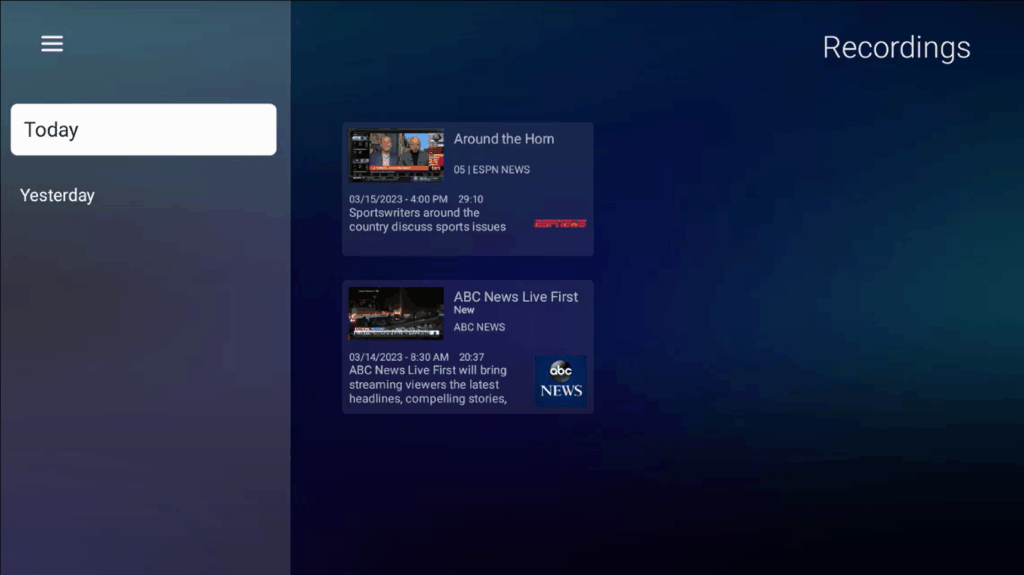
- From the main MyTVOnline 3 screen, navigate to the “Recordings” tab.
- You’ll find sections for “Scheduled Recordings” and “Completed Recordings.”
- Select “Scheduled Recordings” to see your upcoming events.
- Highlight a recording and press “OK” or the “Menu” button for options to “Modify” or “Delete.”
Important Tips for Successful Formuler Recordings
- Dedicated Storage: Use a high-quality, dedicated USB drive. Avoid using the same drive for frequent transfers of other large files during recording.
- Sufficient Space: Ensure your USB drive has enough free space for the recordings. Video files, especially in high definition, can be quite large.
- Stable Connection: A stable internet connection is crucial for IPTV streaming and recording. Any interruptions can affect recording quality.
- Multi-Connection Portals: If you plan to record one channel while watching another, your IPTV service provider must offer multiple connections (often referred to as “lines” or “streams”). Check with your provider if you experience issues recording and watching simultaneously.
- Don’t Unplug: Avoid unplugging the USB storage device while a recording is in progress or scheduled.
- Firmware Updates: Regularly check for and install firmware updates for your Formuler device and MyTVOnline app. These updates often bring performance improvements and new features, including recording enhancements. You can typically find update information on the official Formuler website, Formuler.com.
Explore the World of Formuler Devices
Formuler devices are designed to provide a superior streaming experience, offering robust features like automatic recording, intuitive interfaces, and powerful hardware. If you’re looking to upgrade your home entertainment system, consider exploring the latest models like the Formuler Z11 Pro Max, known for its incredible speed and picture quality, or the versatile Formuler GTV with Google TV integration. The Formuler CC is another excellent choice, especially if you need an inbuilt tuner.
Ready to enhance your viewing experience? Discover the full range of Formuler Android streaming devices and accessories at Formuler.com.
More From Formuler.blog
- Guide to Setting Up Your New Formuler Z11 Pro Max
- See what is best Formuler Z11 Pro Max BT1 vs Apple TV 4K
- Troubleshooting Common Formuler MyTVOnline Issues
Frequently Asked Questions (FAQ)
Q1: What kind of storage device do I need for recording on my Formuler box?
A1: You need an external USB storage device, such as a USB flash drive or an external hard drive (HDD). For best performance, a USB 3.0 compatible drive is recommended.
Q2: Can I record one channel and watch another simultaneously on my Formuler device?
A2: Yes, you can! However, this functionality depends on your IPTV service provider. You need to ensure your subscription offers multiple connections (or “lines”) to allow for simultaneous recording and viewing of different channels.
Q3: How do I know if a recording is scheduled or in progress?
A3: When a program is scheduled for recording, you will typically see a red dot or a red line next to it in the EPG (Electronic Program Guide). While a recording is in progress, a red recording icon (often a circle) will appear on the top right of your screen.
Q4: My recording failed. What could be the problem?
A4: Common reasons for failed recordings include insufficient storage space on your USB drive, a disconnected or faulty USB drive, an unstable internet connection, or your IPTV provider not supporting multiple connections for simultaneous recording/viewing (if you were watching another channel). Check your storage and internet connection first.
Q5: Can I schedule recordings for an entire TV series?
A5: Yes! Both MyTVOnline 2 and MyTVOnline 3 offer “Repeat” options when scheduling. You can select to record a program daily, weekly, or on specific days, making it easy to capture every episode of your favorite series automatically.




[…] How to Use Recording & Timeshift Features on Formuler […]