


Formuler Android streaming devices are known for their sleek interface and powerful features. But did you know you can customize the home screen to suit your viewing style? Whether you’re a sports buff, movie lover, or IPTV enthusiast, a customized layout can save time and make your streaming experience more enjoyable.
Make Your Formuler Experience Faster & Smarter
In this guide, we’ll walk you through the simple steps to customize your Formuler home screen. No advanced skills needed—just a few tweaks to boost your efficiency!
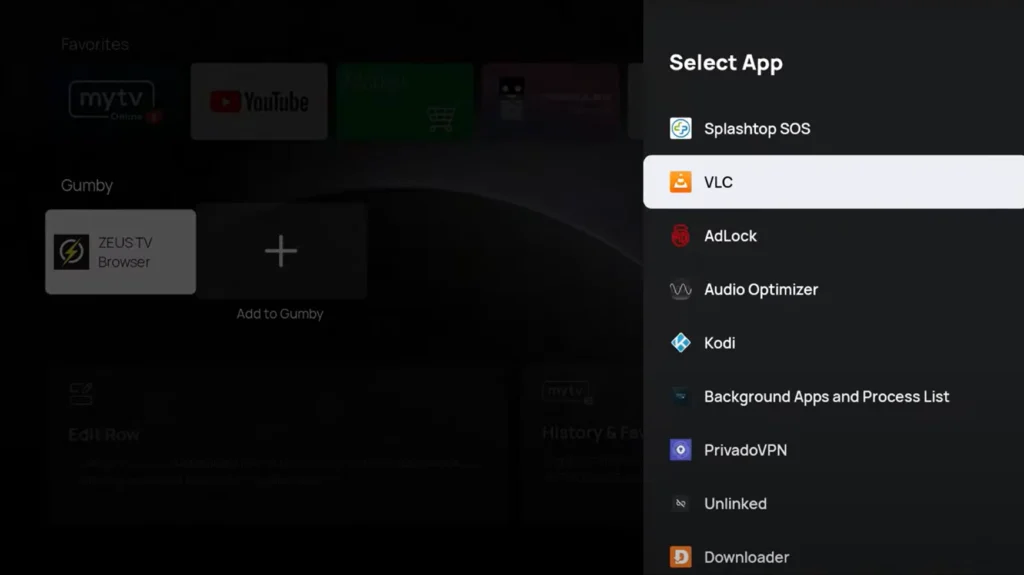
Step-by-Step: Customize Your Formuler Home Screen
1. Access the Home Screen Editor
Head to the main home screen of your Formuler device (such as the Z11 Pro Max or Z10 SE).
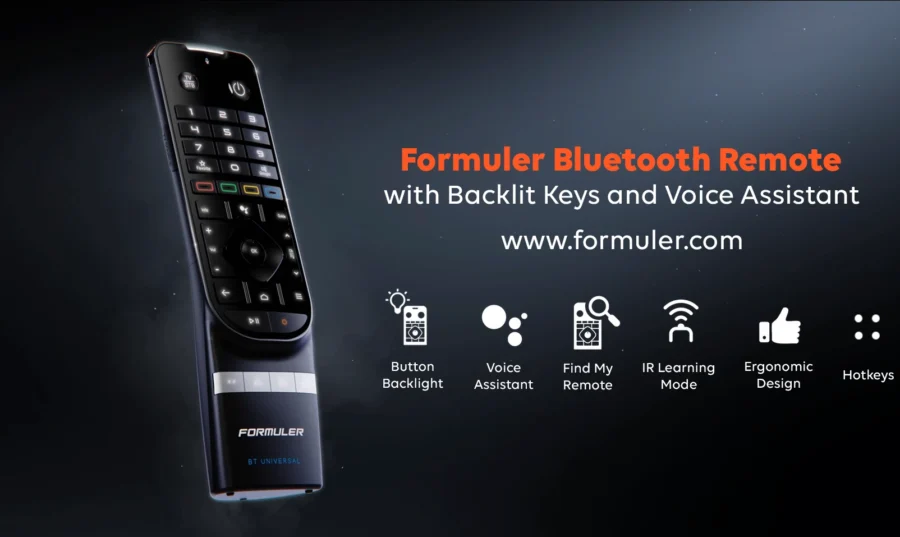
- Use the BT1 remote and press the Menu button while on the home screen.
- Select “Edit Home Screen” from the popup options.
This enables the customization mode.
2. Rearrange Apps and Tiles
Once in edit mode, you’ll see app tiles and shortcuts. Rearranging is easy:
- Highlight any app using the directional buttons.
- Press and hold the OK button.
- Move the app to your desired location, then press OK again to drop it.
✅ Tip: Keep your most-used apps like MyTVOnline 3, YouTube, or Netflix in the top row for faster access.
3. Add or Remove App Shortcuts
You can choose which apps appear on your home screen.
- Select “+ Add App” to include new apps.
- To remove an app, highlight it, press and hold OK, and choose “Remove from Home.”
This helps you declutter your screen for a cleaner, more focused layout.

4. Customize Background and Theme (Z11 Series Only)
Some newer Formuler models like the Z11 Pro Max allow minor visual tweaks:
- Navigate to Settings > Display > Theme/Background.
- Choose from default wallpapers or upload your own (USB required).
A more personal touch goes a long way when enjoying long binge sessions!
5. Set a Default App (Optional)
Want to launch directly into MyTVOnline 3 when you power on the device?
- Go to Settings > Startup App.
- Select MyTVOnline 3 or any app of your choice.
This cuts down on clicks and gets you streaming immediately.
🧡 Quick Overview: Home Screen Options
Here’s a quick table summarizing the custom options available:
| Feature | What You Can Do |
|---|---|
| Rearrange Apps | Move apps anywhere using remote |
| Add/Remove Apps | Show only what you use |
| Set Default App | Launch into a specific app at startup |
| Background | Change wallpaper (on supported models) |
🔗 Related Articles You’ll Love
- How to Use BT1 Remote Effectively with Formuler Devices
- Beginner’s Guide to Setting Up IPTV on Formuler Devices
- Top Hidden Features of Formuler Devices You Probably Didn’t Know
Ready to Upgrade Your Streaming Experience?
Explore the latest Formuler devices like Z11 Pro Max or Z10 Pro Max at Formuler.com — the official source for the best in Android streaming hardware.
Find it Useful? please share
FAQ: Formuler Home Screen Customization
Q1: Can I undo changes I made to the home screen layout?
Yes! You can always go back into edit mode and rearrange or remove apps as needed.
Q2: Is customization available on all Formuler models?
Most customization features are available on models like Z10 Pro, Z11 Pro Max, and newer. Older models may have limited support.
Q3: Will my changes be saved after a reboot?
Yes, Formuler saves your home screen layout settings automatically.
Q4: Can I install third-party launchers?
While Formuler is optimized for its native UI, you can technically install third-party launchers—but it’s not recommended for performance reasons.
Q5: Can I lock the layout to avoid accidental changes?
There’s no built-in layout lock, but avoiding edit mode and using the remote carefully helps.
[…] How to Customize the Formuler Home Screen for Quick Access […]