

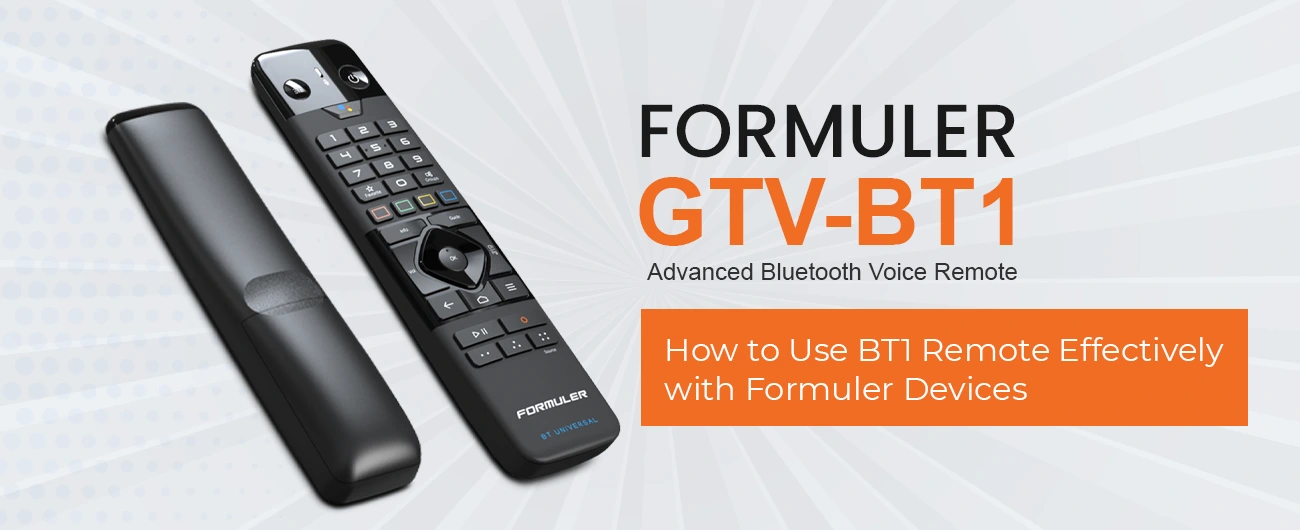
Mastering the Formuler BT1 Remote
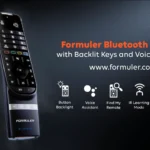
The BT1 Remote is not just any remote — it’s a Bluetooth-powered smart controller designed specifically for Formuler devices. Whether you’re streaming your favorite show, browsing apps, or navigating MyTVOnline 3, learning how to use your Formuler BT1 Remote effectively can dramatically improve your entertainment experience.
Key Features of the Formuler BT1 Remote
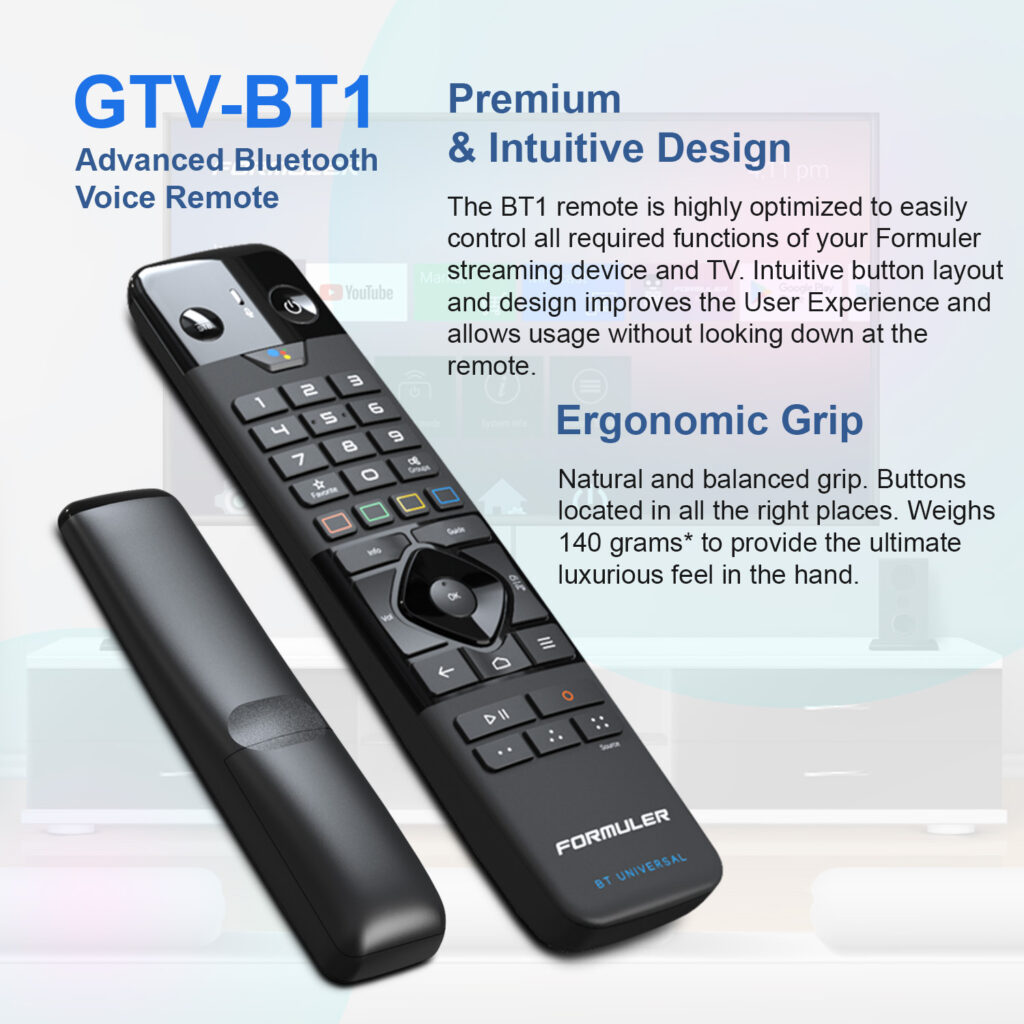
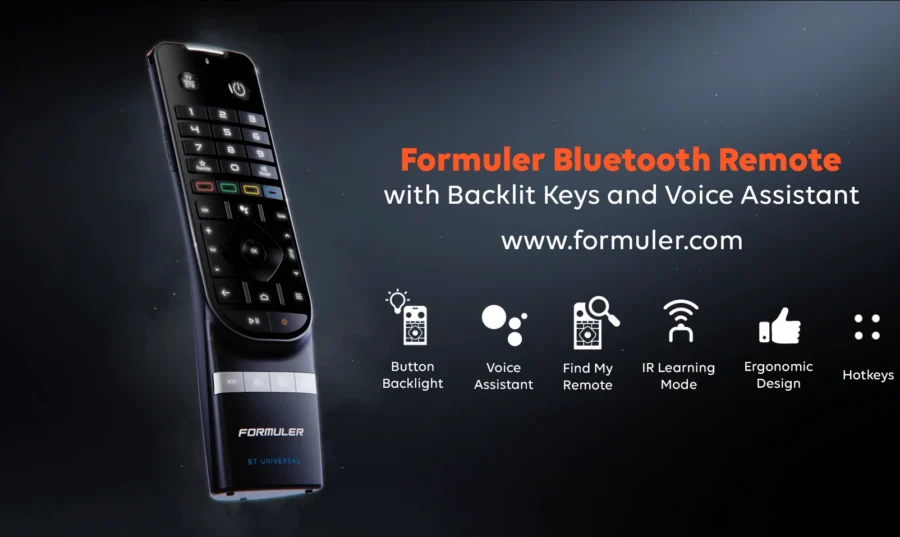
- TV/STB Toggle: Seamlessly switch control between your TV and Formuler box.
- Voice Assistant: Use the microphone button for voice commands with Google Assistant.
- D-Pad & OK Button: Navigate menus and select with ease.
- Dedicated MyTVOnline Button: Quick access to your IPTV platform.
- Volume & Channel Control: Comfortable side-by-side layout.
- User Hotkeys: Customize shortcuts for your favorite functions.
- Ergonomic Grip: Natural balance for long usage without discomfort.
Check How to Install and Use MyTVOnline 3 App on Formuler
How to Pair BT1 Remote with Formuler Device
- Power on your Formuler device.
- Press and hold the OK + RETURN buttons on the BT1 remote until the LED starts blinking.
- Follow the on-screen instructions to complete pairing via Bluetooth.
Tip: Bluetooth pairing improves response speed and allows the remote to work without direct line of sight.

How to Use Key BT1 Remote Functions
- Switch Between TV and Formuler: Press TV/STB to toggle control modes.
- Use Voice Commands: Press the Microphone button and speak your command (e.g., “Open YouTube”).
- Navigate with Precision: Use the D-pad to browse and OK to confirm.
- Customize Shortcuts: Set up hotkeys for apps, MyTVOnline 3, or specific channels.
- Media Controls: Use Play/Pause, Recording, and Color Keys during live TV or VOD.
BT1 Remote Specs Overview
- Weight: 140 grams
- Design: Intuitive layout with grip-friendly structure
- Connection: Bluetooth (no line-of-sight required)
- Compatibility: Works with all latest Formuler models (Z11 Pro Max, Z10 Pro, etc.)
Buy now at Formuler official website
Troubleshooting BT1 Remote
- Not Pairing: Reset Bluetooth from settings and re-pair.
- Unresponsive Buttons: Replace batteries or check for firmware updates.
- Voice Assistant Not Working: Ensure your device is connected to the internet and microphone access is enabled.
Troubleshooting Common Issues with Formuler Devices
Final Thoughts
Using the Formuler BT1 Remote effectively means taking full control of your Formuler experience. With quick navigation, voice features, and custom hotkeys, this remote is your gateway to smarter streaming.
FAQ: Using the Formuler BT1 Remote
Q1. Does BT1 Remote work with Z10 Pro Max?
Yes, it supports all Bluetooth-enabled Formuler models.
Q2. Can I remap hotkeys on BT1?
Absolutely. Go to Settings > Remote & Accessories > Button Configuration.
Q3. Why isn’t my voice command working?
Ensure Bluetooth is connected and mic access is allowed in settings.
Q4. How do I switch between IR and Bluetooth modes?
By pressing the mode switch button (varies by version) or adjusting in settings.

[…] Looking for other helpful tips and guides? Check out our previous post on How to Use BT1 Remote Effectively with Formuler Devices. […]
[…] 💡 Read how to use BT1 Remote effectively with Formuler […]
[…] How to Use BT1 Remote Effectively with Formuler Devices […]
[…] Check this out: How to Use BT1 Remote Effectively with Formuler Devices […]
[…] How to Use BT1 Remote Effectively with Formuler Devices […]
[…] How to Use BT1 Remote Effectively with Formuler Devices […]
[…] Want to explore more about Formuler devices? Visit Formuler.com or check out our detailed guides on How to Use BT1 Remote Effectively and Beginner’s Guide to Setting Up […]
[…] 👉 Check out our guide on How to Use the BT1 Remote Effectively with Formuler Devices […]