

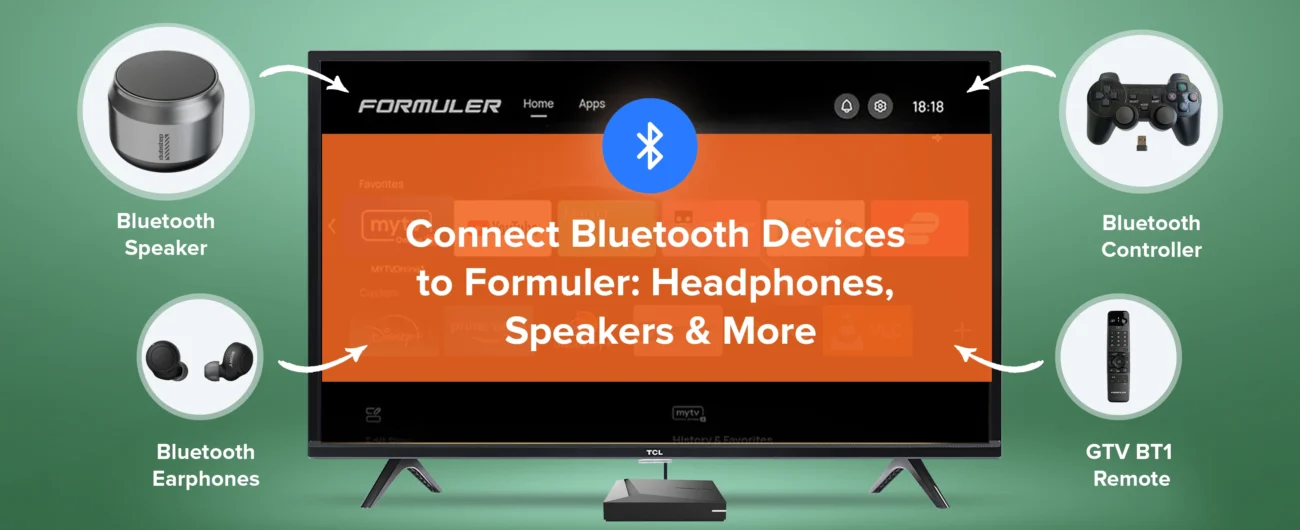
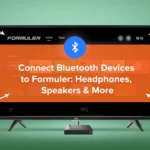
One of the best features of Formuler Android streaming devices is the ability to connect Bluetooth accessories. Whether you want private listening with Bluetooth headphones, immersive sound from wireless speakers, or enhanced control using a joystick or universal remote, your Formuler makes it easy.
Step by step Guide
In this guide, we’ll walk you through how to connect different Bluetooth devices step by step. By the end, you’ll know exactly how to pair and manage your favorite accessories for the ultimate streaming and gaming experience.
How to Connect Bluetooth Devices to Formuler
Step 1: Access Bluetooth Settings
- From your Formuler home screen, go to Settings.
- Select Remotes & Accessories.
- Choose Add accessory.
Your Formuler will now begin searching for nearby Bluetooth devices.
Step 2: Pair Bluetooth Headphones
- Put your Bluetooth headphones in pairing mode.
- Wait until they appear on your Formuler screen.
- Select your headphones to pair.
Once connected, you can enjoy private listening without disturbing anyone else. Perfect for late-night streaming!
Step 3: Connect Bluetooth Speakers
- Place your speaker in pairing mode.
- Select it from the Formuler Bluetooth device list.
- Confirm pairing.
👉 This setup is great for boosting sound quality while watching movies or sports.
Step 4: Pair a Joystick for Gaming
Formuler devices aren’t just for streaming—you can enjoy Android games too.
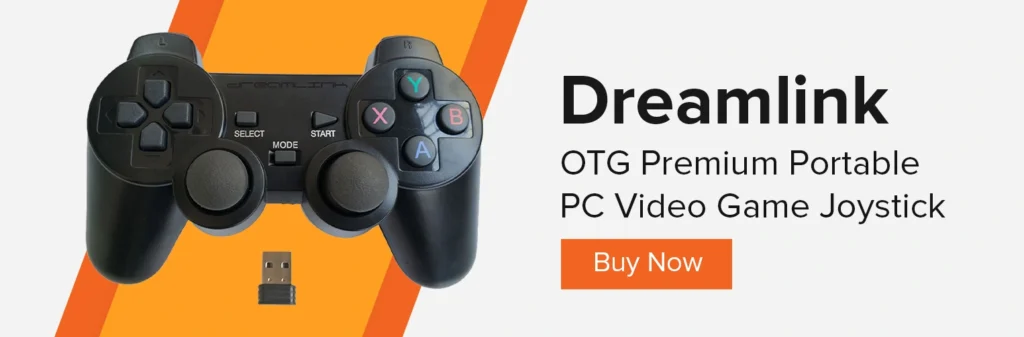
- Put your Bluetooth joystick in pairing mode.
- Select it in the accessory list.
- Start playing supported games with smoother control.
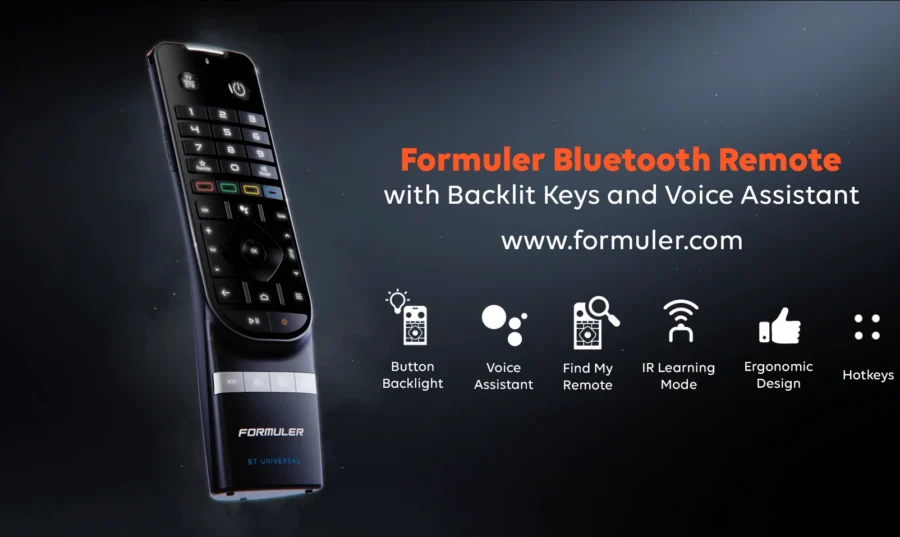
Step 5: Use a Universal Remote
If you prefer one device to control your TV, Formuler, and other gadgets, a Bluetooth universal remote is a solid choice.
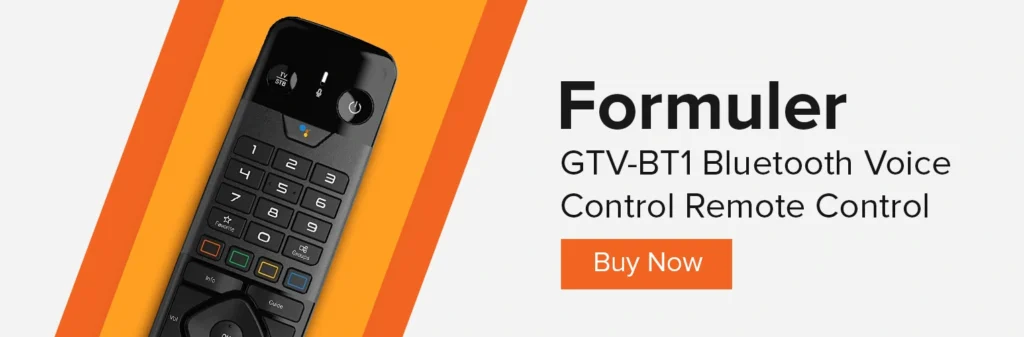
- Put the remote in pairing mode.
- Connect via Remotes & Accessories.
- Map the buttons if required.
Quick Comparison of Bluetooth Accessories
Here’s a simple breakdown of popular Bluetooth devices you can connect to Formuler:
| Device | Use Case | Best For |
|---|---|---|
| Bluetooth Headphones | Private listening | Late-night streaming |
| Bluetooth Speakers | Wireless sound | Movies & sports |
| Joystick | Gaming control | Android games |
| Universal Remote | All-in-one control | Multi-device setups |
Final Thoughts
With Bluetooth support, Formuler devices give you the flexibility to enjoy wireless audio, better controls, and even gaming accessories. Whether it’s Bluetooth headphones, a joystick, or a universal remote, pairing is quick and easy.
👉 Want to explore more about Formuler devices? Visit Formuler.com or check out our detailed guides on How to Use BT1 Remote Effectively and Beginner’s Guide to Setting Up IPTV
Frequently Asked Questions (FAQ)
Q1: Can I connect AirPods to my Formuler device?
Yes, AirPods can connect just like any other Bluetooth headphones.
Q2: Does Formuler support multiple Bluetooth devices at the same time?
Yes, but performance may vary depending on the accessory type.
Q3: Will a Bluetooth joystick work with all games?
Not all Android games support external joysticks, but many popular ones do.
Q4: Can I use a Bluetooth soundbar instead of speakers?
Yes, Bluetooth soundbars connect in the same way as speakers.

[…] How to Pair Bluetooth Devices with Formuler Easily […]