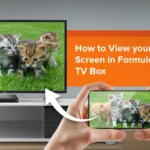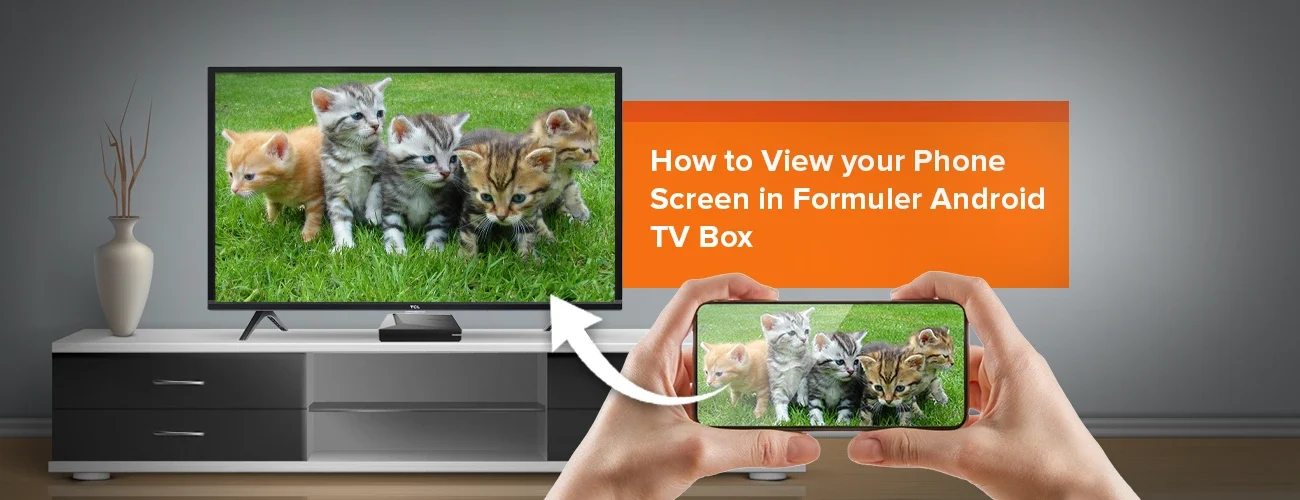
Casting or mirroring your favorite content from a smartphone, tablet, or computer to your Formuler device can transform your viewing experience. Whether you’re showcasing vacation photos or streaming YouTube, this guide will walk you through how to cast or mirror to Formuler easily.
What Is Casting vs. Mirroring in formuler?
- Casting allows you to send media (like a video or audio stream) directly to your Formuler device. Once casted, your phone can be used for other tasks.
- Mirroring displays your device’s screen in real time on the TV, including any apps, games, or actions you perform.
How to Cast Content to Formuler
✅ Best for YouTube, Netflix, and compatible apps.
✅ Great for YouTube, Netflix, and more!
This works best with apps that let you “cast” videos.
From Android Phones & Tablets:
- 1Same Wi-Fi: Make sure your Formuler and Android device are on the same Wi-Fi network.
- 2Open an App: Open an app like YouTube.
- 3Find the Cast Icon: Look for and tap the icon.
- 4Pick Your Formuler: Choose your Formuler from the list of devices.
- 5Watch on TV: Play your video, and it will show up on your TV!
From iPhones & iPads:
iPhones and iPads use AirPlay, which Formuler doesn’t directly support. But try this:
- 1Get an App: Download an app like “AirScreen” from the Formuler App Store.
- 2Set it Up: Follow the instructions in AirScreen to make AirPlay work.
- 3Cast Your Video: Open your video and tap the icon.
Download AirScreen for Formuler
📱 Mirror Your Screen to Formuler
Best for presentations, social media, or non-castable apps.
From Android (Using Miracast):
- 1On your Formuler: Go to Settings > Connections > Miracast and enable it.
- 2On your phone: Go to Settings > Connection & Sharing > Cast / Wireless Display.
- 3Select: Select your Formuler device.
- 4Confirm: Confirm and start mirroring.
From iOS (Using AirScreen):
- 1Install: Install AirScreen on your Formuler.
- 2Open: Open AirScreen and follow the pairing instructions.
- 3On your iPhone: Swipe down for Control Center > Screen Mirroring.
- 4Choose: Choose your Formuler device.
From Windows 10/11:
- 1Open: Open Action Center > Click Project or Connect.
- 2Select: Select your Formuler device from the list.
- 3View: Your PC screen will appear on your TV.
Troubleshooting Tips
- ✅ Ensure both devices are on the same Wi-Fi.
- 🔁 Restart both Formuler and casting device if the connection fails.
- 📲 Use updated apps like AirScreen or Miracast compatible tools.
Why Casting/Mirroring to Formuler is Awesome
- No need for third-party dongles
- Works with most smart devices
- Great for sharing content in real-time
Check out our other Blogs
- 🔗 Beginner’s Guide to Setting Up IPTV on Formuler Devices
- 🔗 How to Use BT1 Remote Effectively with Formuler Devices
- 🔗 How to Use Recording and Timeshift Features on Formuler
FAQ (FAQPage Schema Markup)
Q1: Can I cast Netflix or YouTube to Formuler?
Yes! Open the app and tap the Cast icon, then select your Formuler device.
Q2: Does Formuler support Apple AirPlay?
Not natively, but you can use third-party apps like AirScreen.
Q3: Why can’t I find my Formuler in the cast list?
Ensure both devices are on the same Wi-Fi network and restart both.
Q4: Is screen mirroring the same as casting?
No. Casting sends only the content, while mirroring duplicates your whole screen.