


Streaming with Internet opens the door to unlimited content—but for families, it’s important to control what children can access. That’s where Formuler Parental Controls come in. In this guide, we’ll walk you through how to enable and customize these features so your kids only see what’s age-appropriate.
What Are Parental Controls?
Formuler’s built-in parental control features allow you to:
- Restrict adult or unwanted content.
- Lock apps with a password or PIN.
- Hide specific channels or content.
- Monitor and limit access duration.
These tools are especially useful on devices like the Z11 Pro Max and Z11 Pro, which are widely used for IPTV streaming.
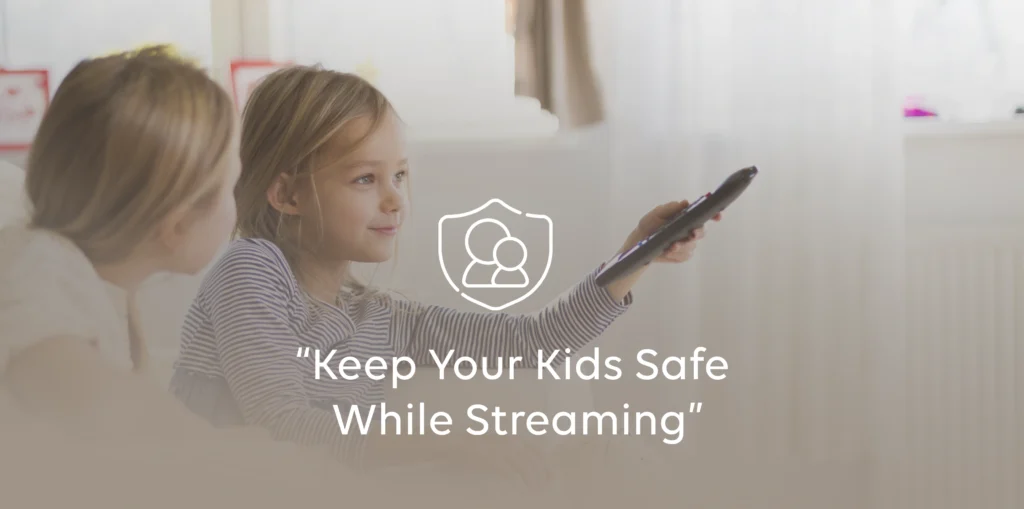
How to Enable Parental Controls in Formuler(Step-by-Step)
-
Access Settings:
Open your Formuler device and navigate to
Settings > Parental Control. -
Set a Secure PIN:
Choose
Set PINand enter a 4-digit number.Default Pin Number will be 0000 ( Four Zero'sConfirm the PIN to activate the lock. -
Lock Applications:
Go to
App Lockand toggle ON for any apps you want to restrict (e.g., YouTube, Web Browser). -
Channel Restrictions:
Open the Live TV or MyTVOnline 3 app. Go to its settings and use the
Hide Channelsoption to block specific channels from viewing. - Save and Exit: Double-check your settings. Exit the menu and ensure your chosen PIN is required to access locked apps or hidden channels.
👪 Why Parental Controls Are Important
These settings offer peace of mind. Kids often explore beyond what’s safe or appropriate, but parental controls give you back the power to create a safe streaming environment.
🔁 Tips for Parents Using
- Update the firmware regularly to access improved parental features.
- Use Time Limits to reduce screen time.
- Educate your children about safe content consumption.
Internal Links:
FAQ: Parental Controls Guide Formuler
Q1: Can I lock specific apps?
Yes, you can lock apps using the built-in Parental Control settings. Go to Settings > Parental Control > App Lock and choose which apps to restrict.
Q2: How do I set a parental control PIN?
Go to Settings > Parental Control and select Set PIN. Enter and confirm a 4-digit PIN of your choice to protect restricted areas.
Q3: Is it possible to hide adult channels?
Absolutely. Within the Live TV or MYTVOnline 3 app, you can access the settings to hide specific channels from the viewing guide.
Q4: How can I block access to certain content?
Use the Parental Control options in the settings menu to restrict specific categories or content types, ensuring safer viewing for kids.
Q5: Can I prevent access to the internet for specific apps?
While direct internet restrictions per app aren’t available by default, you can control access through general network settings or use third-party tools.
Q7: What happens if I forget the parental PIN?
If you forget your PIN, you may need to perform a factory reset or contact support for help in resetting your device settings securely.
Q8: Can I change the PIN later?
Yes, you can update the PIN at any time by going back into Parental Control > Change PIN and entering the new code.








Hello.
Owner of a Formuler z10 SE. Mytvonline2.
I find it difficult to follow on Q4. I cant seem to block access to adult content from the film section. Instructions are not clear. Its easy to block TV channels though. Not sure if I should follow parental control from the main Formuler menu but either way doesnt seem to work for me. Help.
Thanks for reaching out! I understand the confusion — blocking adult content in the Film (VOD) section of MyTVOnline2 can be a bit tricky compared to blocking TV channels.
Here’s what you can do:
Open MyTVOnline2 → go to Settings ⚙️
Select Parental Control
Enable Parental Control (you’ll be asked to set or enter a PIN)
Once enabled, go to the VOD or Movies section → highlight the category or specific title you want to restrict.
Press the Menu (☰) button on your remote → choose Lock Category or Lock Content (this will depend on your service provider and content layout).
If you only locked TV channels earlier, you’ll need to repeat the process inside the VOD section — each content type (Live TV, VOD, Series) has its own parental lock options.