

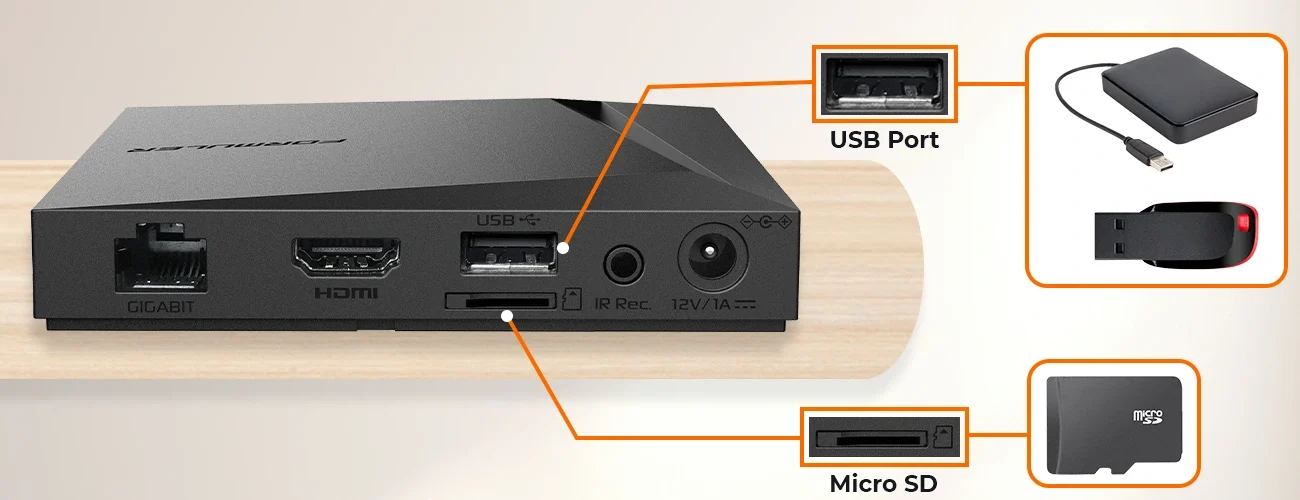
Formuler devices are known for their advanced IPTV capabilities — and one of the most powerful features is the ability to record live TV and use TimeShift. Whether you’re using a Formuler Z11 Pro Max or another model, connecting an external USB drive or hard drive unlocks its full PVR (Personal Video Recorder) potential.
In this guide, we’ll show you how to properly set up USB storage on Formuler to record IPTV, use TimeShift, and even recommend accessories to enhance your experience.
What You’ll Need
- A compatible Formuler device (Z11 Pro Max, Z11 Pro BT1, etc.)
- A USB 3.0 flash drive or external hard drive (at least 16GB recommended)
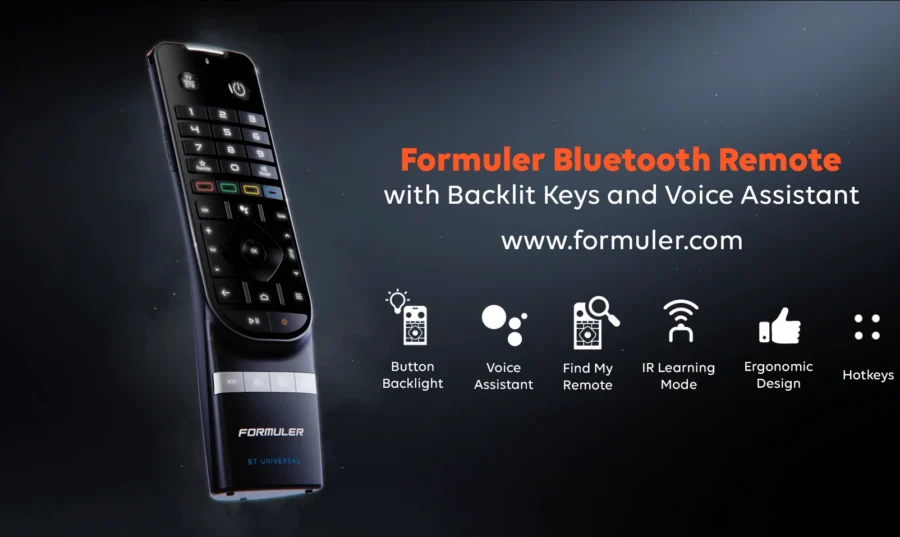
- Your BT1 remote
- An active IPTV subscription
- The MYTVOnline 3 app (pre-installed on all Z11 devices)
Why External Storage is Required
Formuler’s recording and TimeShift functions require a dedicated storage device. This allows the system to buffer live TV, record content, and pause/play without impacting system performance.
💡 Tip: Using USB 3.0 or SSD external drives gives you faster write speeds and better performance.How to Connect and Format USB Storage
Step 1: Insert the USB Drive
Plug the USB flash drive or external HDD into one of the available USB ports on your Formuler box (USB 3.0 recommended for better performance).
Step 2: Format the Drive
- Go to Settings > Storage > Choose your drive.
- Select “Erase & Format as Device Storage” (if prompted).
- Wait for formatting to complete.
⚠️ This will erase all existing data. Make a backup if needed.How to Record IPTV on Formuler
👉 Beginner’s Guide to Setting Up IPTV on Formuler1. Open MYTVOnline 3
Launch the app from the home screen.
2. Select the Channel You Want to Record
Browse the Live TV section and go to the desired channel.
3. Press the Record (●) button on your BT1 remote
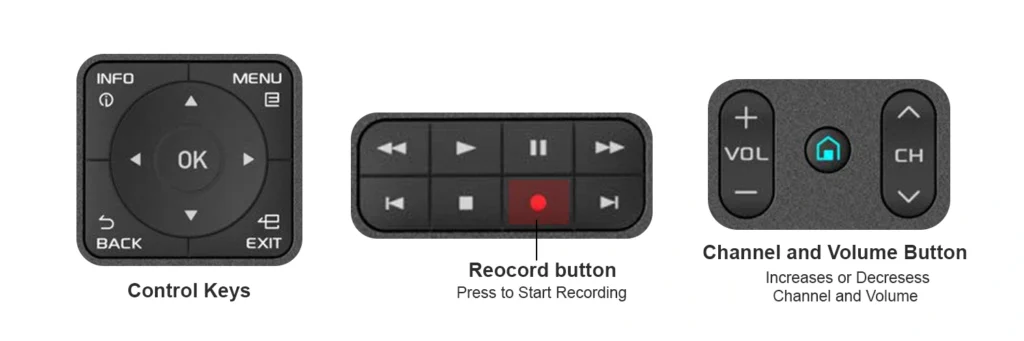
- You’ll be prompted to confirm recording.
- Formuler will start recording immediately to the connected USB.
4. Access Recorded Content
Go to:
- MYTVOnline 3 > Recordings
- Browse and play your saved videos anytime.
⏸️ Using TimeShift (Pause Live TV)
Formuler also supports TimeShift, which temporarily stores live TV content.
To enable:
- Go to MYTVOnline 3 > Settings > TimeShift
- Turn it ON and set a default storage location.
You can now:
- Pause live TV
- Rewind during a show
- Resume playback
🔁 Troubleshooting Storage Issues
| Problem | Solution |
| Formuler doesn’t detect USB | Try using a different port or USB 3.0 stick |
| Recording fails | Ensure storage is formatted correctly and has enough space |
| Playback stutters | Use faster drives like SSD or quality brand USB 3.0 |
👉 Top Hidden Features of Formuler Devices📌 Final Thoughts
Using external USB or hard drives with your Formuler device truly transforms it into a complete IPTV recording solution. With the right setup, you’ll never miss a show again and can pause, rewind, and record with ease.
So grab a high-speed USB, plug it in, and enjoy total control over your live TV experience.
👉 How to Use Recording and TimeShift Features on FormulerFAQ – Recording IPTV on Formuler Devices
Q1. Can I record IPTV on Formuler without a USB or external hard drive?
A: No, Formuler requires an external USB or hard drive to enable recording and TimeShift features. The internal storage is reserved for system operations.
Q2. What type of USB drive is best for recording on Formuler?
A: A high-speed USB 3.0 flash drive or external SSD/HDD with at least 16GB of free space is recommended for smooth recording and TimeShift performance.
Q3. How do I know if my USB drive is working properly on Formuler?
A: Go to Settings > Storage to see if your drive is detected. If not, try reformatting it or switching to another USB port. You can also test by attempting to record a live channel.
Q4. Can I record one channel and watch another at the same time?
A: This depends on your IPTV provider’s stream limits. Some services allow multiple streams, but Formuler only supports one tuner, so it cannot record and play different live channels simultaneously without multi-stream support.
Q5. Is it safe to remove the USB drive while recording?
A: No, you should stop recording and safely eject the drive from Settings > Storage to avoid data corruption or file loss.



[…] Learn: How to Connect External Hard Drive or USB to Record on Formuler […]